

Before you start
- Your plan. Connecting an AI tool comes with a paid plan (Software or Custom). On Free, the card says “Your plan doesn’t include AI tools.” with See plans. See Plans.
- Your role. Only owners and admins can make the link. Others see “Ask an owner or an admin for it.”
- Your AI tool. It must accept a custom MCP connector by link, or let you set a header.
Connect with a link
Use this for AI tools where you can only paste a link.1
Open the MCP card
Go to Settings › API & MCP and press the connect button on the card.
2
Get your link
Press Make a key to get the link. If the workspace already has a key, press Make a new key to get the link…. Copy the link.
3
Add it to your AI tool
In your AI tool’s settings, add a custom connector. Paste the link, give it any name and save. The B2B Signals tools show up in your chat.
Connect with a header
If your AI tool or code lets you set headers, use this. It keeps the key out of the address, which tools and hosting services may save in logs. Copy the address from the MCP card. Then send your API key in thex-api-key header:
What your AI tool can do
Press See everything it can do on the card for every tool, with search. There are 124 today:
The tool acts with your workspace’s API key, so it has owner-level access to this workspace. It can delete a campaign or a list if you ask it to. Your AI tool may ask you before it acts, but that’s up to the tool. See Permissions.
Let AI tools send
Let AI tools approve and send messages is off by default. While it’s off, drafts wait in Approvals for a person.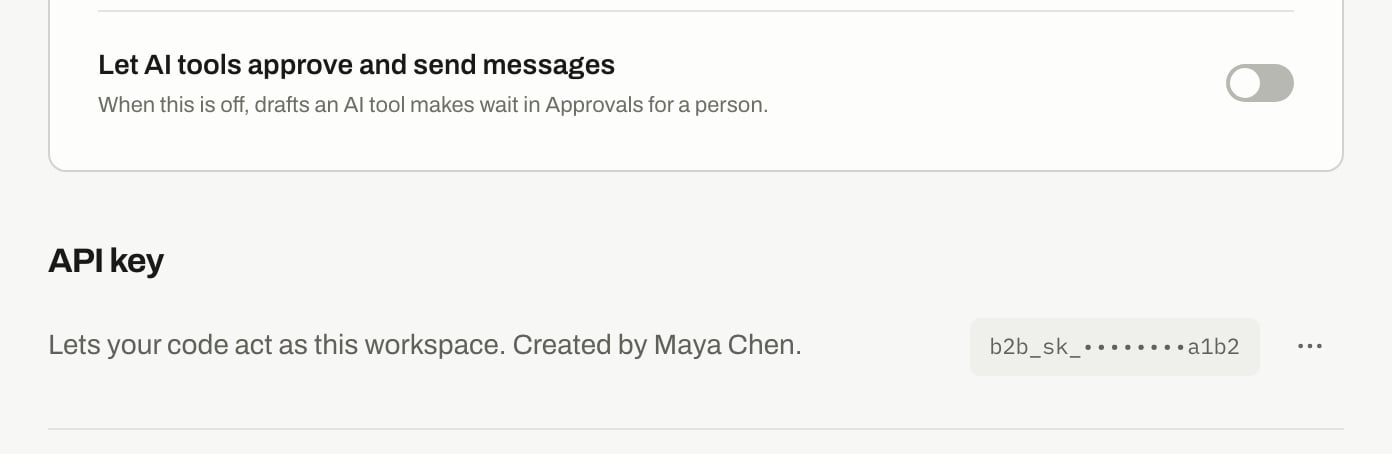
Settings › API & MCP: the switch at the bottom of the MCP card, off by default, and the API key card under it.
- Only owners and admins can change it, and only while signed in. A key can’t turn it on.
- Your plan must include MCP.
- It covers your whole workspace, including anything that uses your API key.
- Replies sent this way are limited to 30 per workspace per UTC day, and one every 2 minutes per chat.
Disconnect
To cut off every AI tool, turn off or replace your API key. There’s one key per workspace, so this also stops your scripts and anything else that uses it. To remove one tool, delete the connector in that tool. The key keeps working wherever else it’s saved.Troubleshooting
The AI tool says Not authenticated
The AI tool says Not authenticated
The key in the link is wrong, was replaced or was turned off, or your plan doesn’t include MCP. Make a new link and update the connector.
The tools don't show up
The tools don't show up
Check that the whole link was pasted and that you saved the connector. Then start a new chat in your AI tool.
The tool says a signed-in session is required
The tool says a signed-in session is required
A person has to do this in B2B Signals. See Permissions.
Drafts aren't going out
Drafts aren't going out
They’re waiting in Approvals. That’s the default.
Related
API keys
Make, replace or turn off your key.
Approvals
Review what AI tools draft.