

Choose how much you check
Set this per campaign in Settings, under Approvals.
First message only is under Other ways, which also lets one step follow its own rule: Same as the campaign, Check every message or Send without checking. A Check first step holds the next step for your OK in any mode.
Backup text waits for a person even on Autopilot.
An invite without a note has no text to check, so in Every message and First message only it goes out without waiting for you. Settings says “Invites without a note go out without approval. There is nothing to read.” The draft’s Overview, the launch dialog and Add to a campaign say it too.
Approve a message
1
Open the queue
Messages are grouped by campaign, then by step. Sort by Best first or Oldest first, and narrow it with All campaigns.
2
Read it
Open a message. It shows the sender, the language and what comes next.
3
Change it if you want
Type over the text, or use Shorter, Friendlier, Mention their post (when the reason is a post), or tell it what to change. Back to the original undoes your edits. Edits save when you approve.
4
Approve
Click Approve. Under Once per person the button approves everything for that person. You get an Undo for 12 seconds.
On a keyboard, open a message and press A to approve, E to edit and S to skip. Press ? for the list. On a phone, you review one at a time and swipe right to approve, left for later.
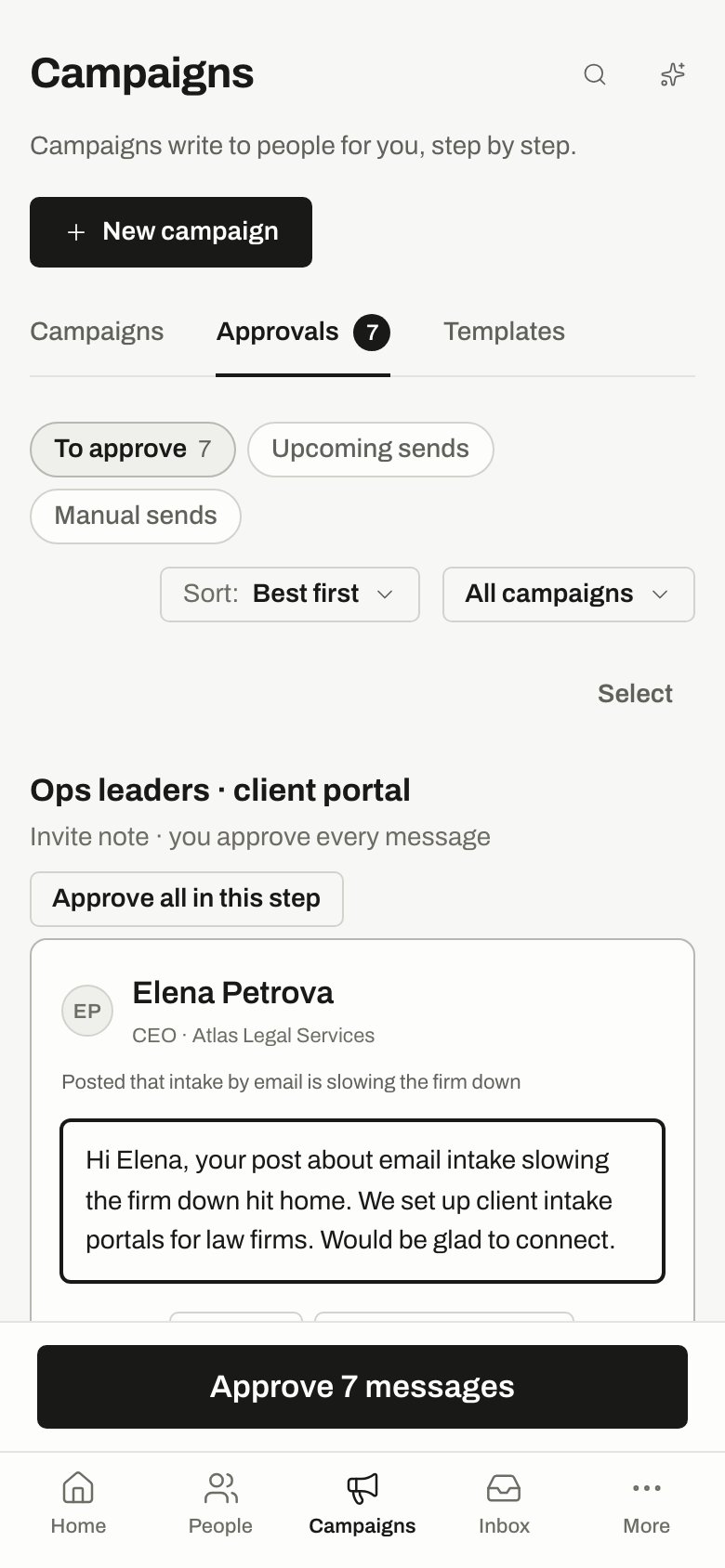
On a phone, the bar at the bottom opens the one-at-a-time review.
Approve several
1
Turn on selecting
Click Select, then tick the people you want. Select all ticks a whole step. Click Done to leave.
2
Approve
Click the button with the count, like “Approve 8 messages” or, under Once per person, “Approve 8 people”.
3
Check what was left out
A banner lists anyone not approved, with the reason. You get an Undo for what was approved. If some had already started going out, Undo says how many it took back.
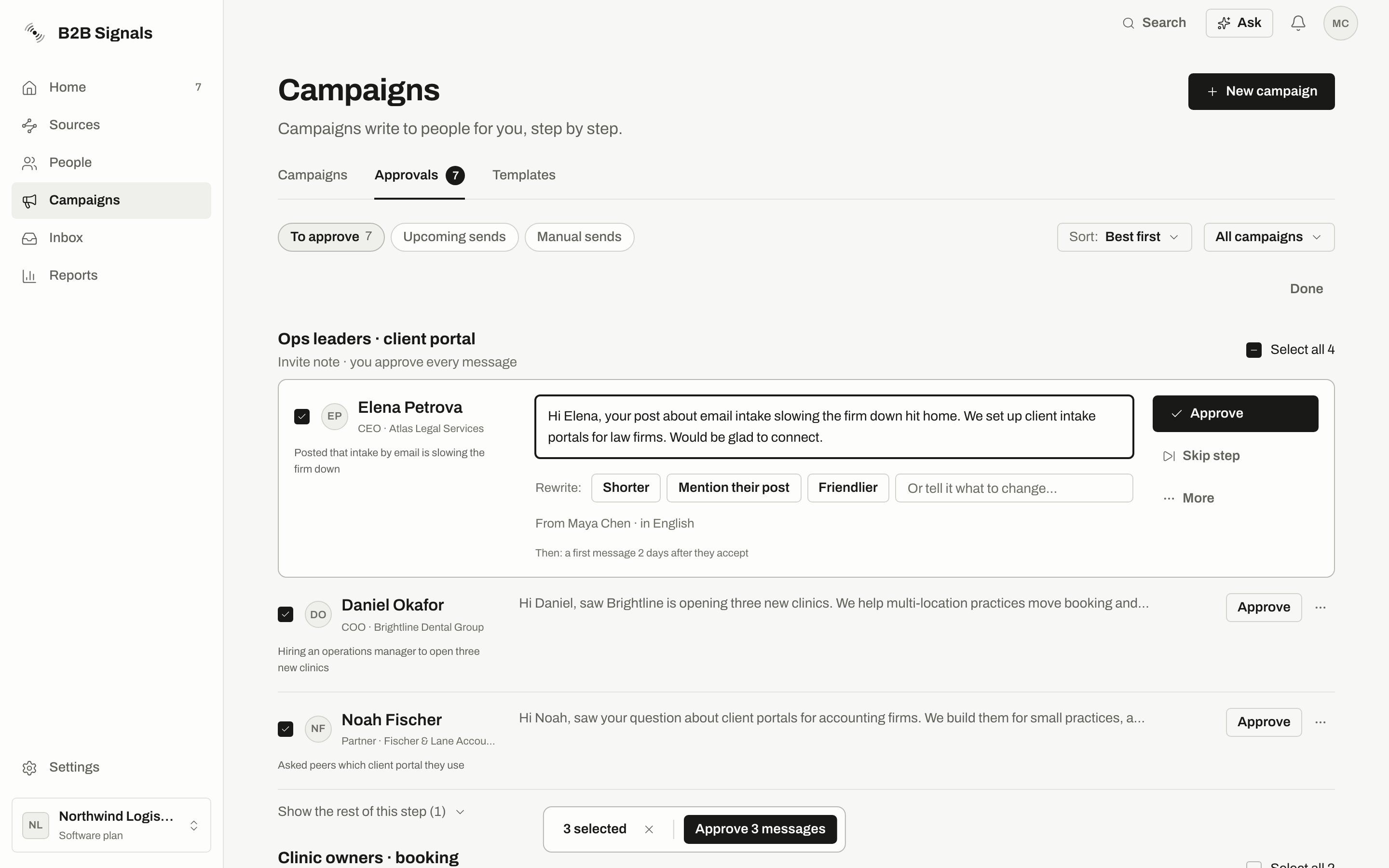
With Select on, tick people one by one or use Select all for a step. The bar at the bottom approves them in one go.
Add a missing name
Sometimes we can’t tell who a message is for. The card says “We couldn’t identify the person on this one”, and it can’t be approved. Type their real name in Their name and click Save name. A LinkedIn address or a company’s name is refused. The message isn’t rewritten when you save, so it now needs the check below. If there’s no person to name at all, remove it from the campaign’s People tab.When a name changes
If someone’s name was added or changed after their message was written, the greeting may be wrong. The message is held and can’t go out until you decide.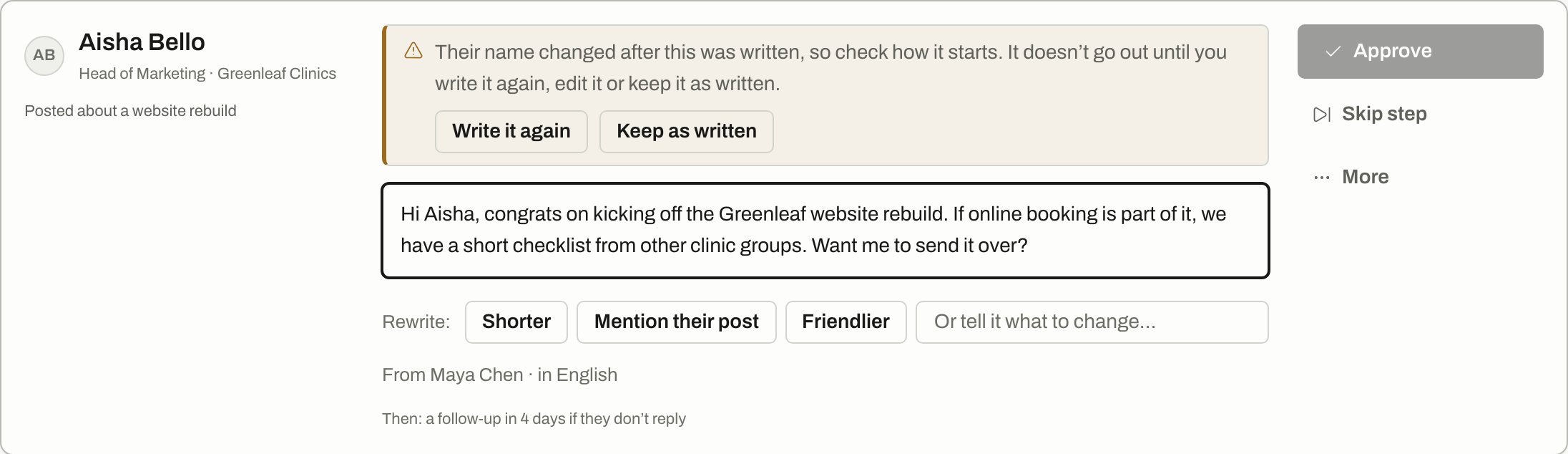
Approve stays off until you write it again, edit it or keep it as written.
When a message can’t be approved yet
From an email link
A digest email can link to one message, which opens by itself with Show everything waiting above it. If it says “We couldn’t find that message”, it may have been approved, skipped or taken out of the campaign, or it may be in another workspace. Try Look in another workspace.Related
Upcoming sends
What’s lined up after you approve.
Manual sends
Messages you send on LinkedIn yourself.
Steps and messages
AI text, your own text and per-step rules.
Notifications
Get told when messages are waiting.