

Create the draft
1
Open the dialog
In Campaigns, click New campaign.
2
Pick how to start
Choose one of the three options in the table below.
3
Name it, if you like
With a template or Blank, you can type a Name. It’s optional, and you can rename it any time. If you leave it empty, the campaign gets the name shown in the field: the template’s name, or “Untitled campaign”.
4
Create it
Click Create draft. With Describe it, click Ask to build it instead, which hands your text to Ask.
Every draft starts with safe settings. You can change them before or after launch.
Pass the three checks
A draft’s Overview shows Three checks, then launch.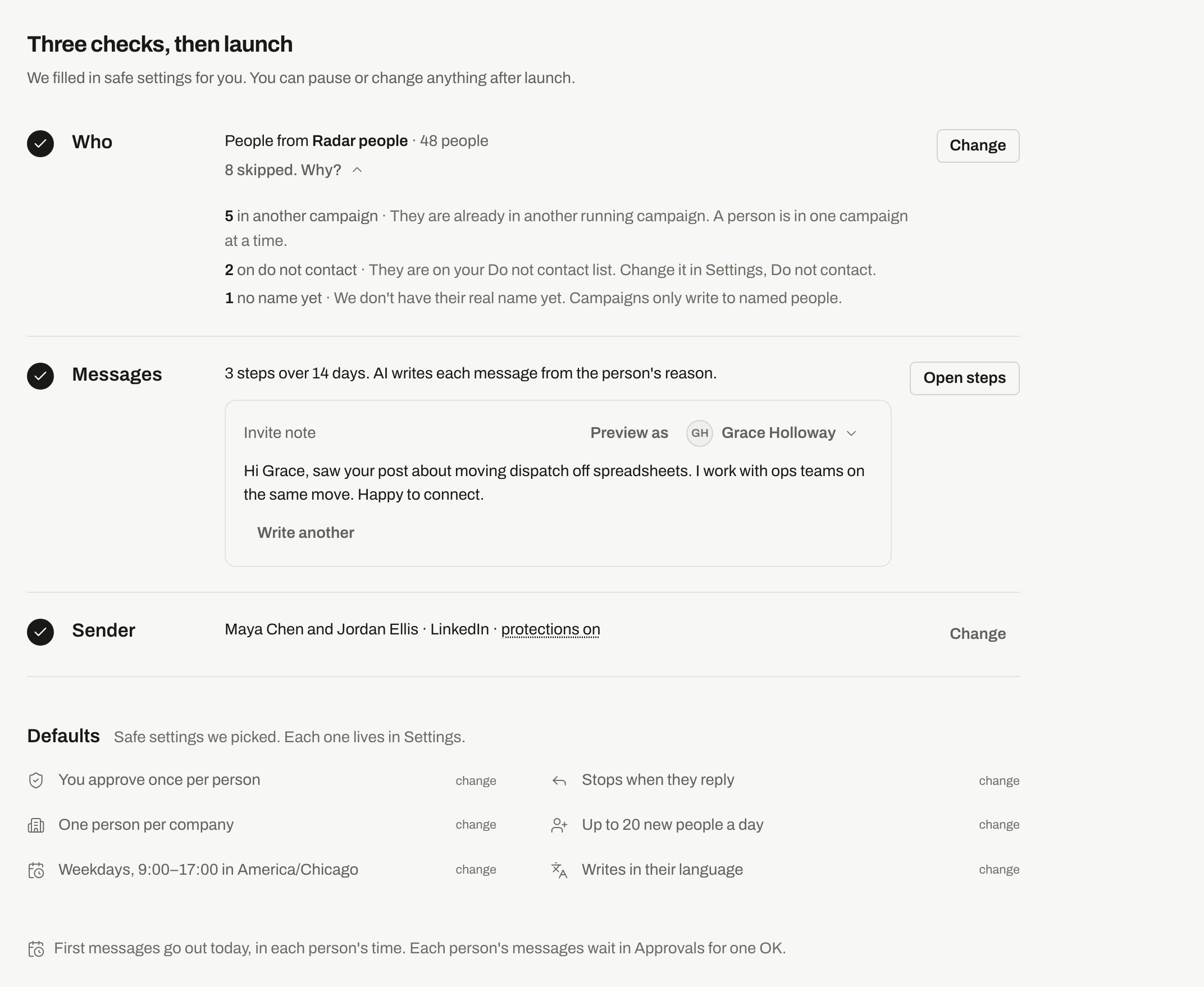
A draft's Overview with the skipped people explained and an example invite note.
The same page has a preview card. Choose a person under Preview as and click Write an example or Write another. Nothing is sent or saved. You need a sender first, because previews are written as your sender.
If people are missing a field your text uses, you see how many, with Skip it for them or Open steps.
Defaults at the bottom lists the settings we picked: approval, stop on reply, one person per company, new people a day, schedule and language. Each one lives in Settings.
What can stop a launch
Launch stays disabled until the checks have loaded and nothing blocks it. The dialog lists what’s wrong under Not ready yet, with a Fix it link. If the server refuses, you see all the problems at once and an Open Steps link.
Some things warn you and still let you launch:
- The list is empty. People you add later join on their own.
- A custom column is filled for only some people on the list. The others get the step’s backup text, if you set one.
- The sender’s monthly allowance for invite notes has run out. Invites go without a note until it resets.
- No sender is chosen for this campaign, or a chosen sender is paused or needs reconnecting. The launch dialog shows Launching now would send nothing yet, with Add a sender, Resume sender or Reconnect LinkedIn. If you launch anyway, the people wait until the sender can send.
Launch or schedule
1
Open the launch dialog
Click Launch, or Schedule to pick a start day.
2
Read the summary
It says how many people will start, including people you added to the draft by hand, how many are skipped and why, and how many wait in People › To review until you mark them Good fit. It also says when first messages go out, how many new people start each day and how approval works.
3
Confirm
The button shows the number, for example “Launch for 40 people”. After launch, the campaign is Running.
An invite without a note has nothing to read, so it doesn’t wait for approval in Every message or First message only. The draft’s Overview and the launch dialog say “Invites without a note go out without approval.”
Read more in Approvals. You can pause at any time, and that stops anything not yet sent.
Set the schedule
In Settings, under Schedule, choose when messages go out:
A sender set to pause on weekends stays paused on weekends, even if your schedule includes Saturday. See Senders and limits.
Who sends: you or the campaign
Most campaigns send for you from a connected LinkedIn account. If your workspace has no connected LinkedIn account when your first campaign is set up, that campaign runs by hand. Each message waits in Manual sends for you to send on LinkedIn and mark as sent. When you connect LinkedIn, the campaign switches to sending for you. People whose message was already waiting for your hand stay by hand. Any other new campaign needs a connected sender to launch.Related
Steps and messages
Invites, follow-ups, AI and your own text.
Add people
Who gets in and who gets skipped.
Approvals
Check messages before they go out.
Connect LinkedIn
Add an account to send from.